Add & configure fields
Add fields to your form, put them in order, and set up how each one works.
➕ Add a Field
Three ways to open the field picker — all work the same:
Add element button at the end of a page
The + handle between two existing fields
+ handles on a field in the live preview (top/bottom = above/below, left/right = side by side)
Pick a field type from the picker (grouped by category), or type a description and let AI add it for you.


Field categories:
Contact info
Email, Name, Phone, Password, Country
Text
Text, Textarea
Number
Number, Quantity
Selects
Checkboxes, Dropdown, Radio, Consent, Switch, Range slider, Image options, Button, Product
Input
URL, Date time, Hidden, Repeater, Signature
Ratings
Feedback, Matrix, Rating level, Rating star
File upload
File Upload
Color
Color Swatch, Color Picker
Static text
Heading, Paragraph, HTML, Divider
📌 Note: Grayed-out types need a plan upgrade.
🔀 Reorder Fields
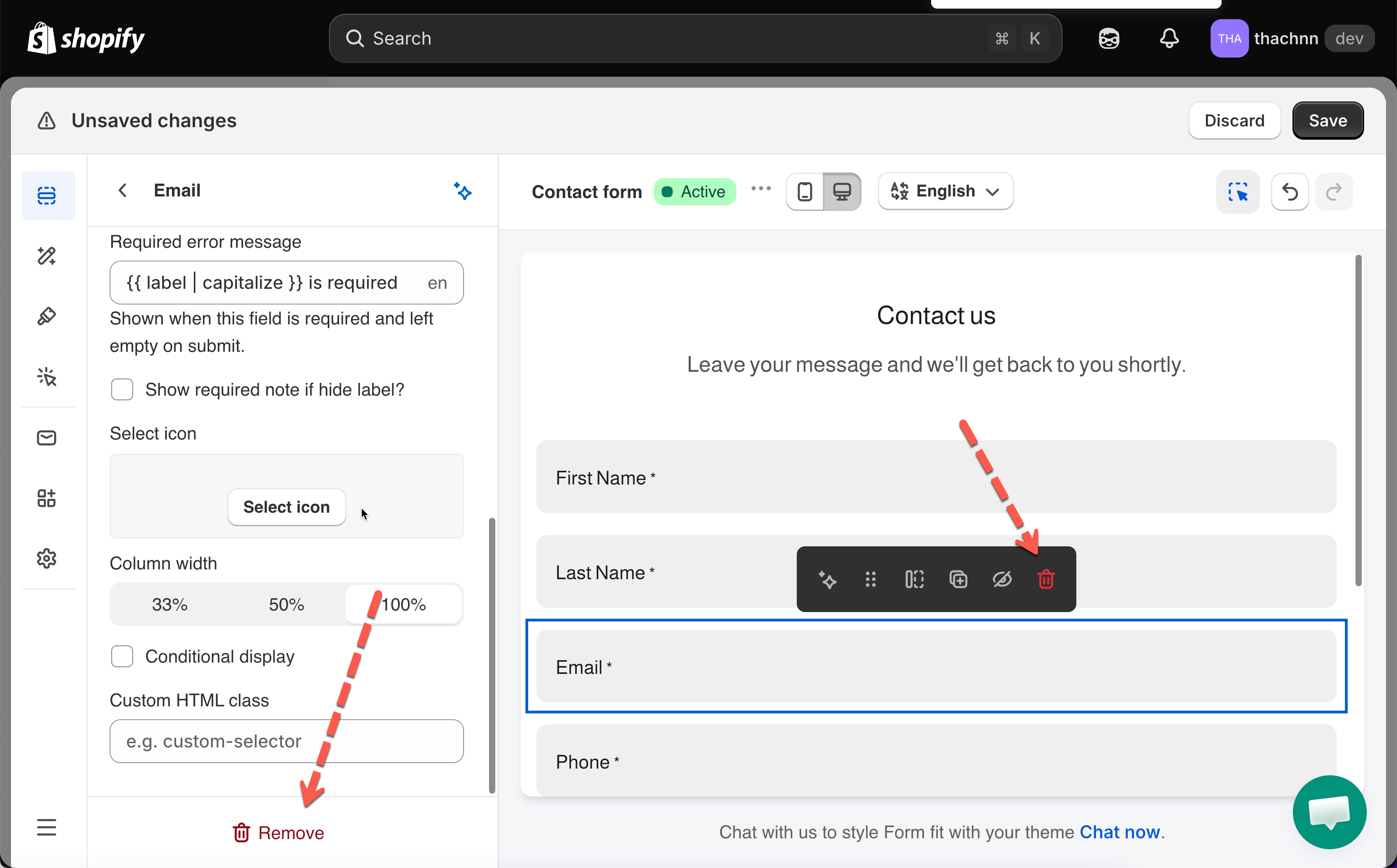
In the Elements list: drag a row's handle to move it — reorder within a page, move between pages, or reorder pages themselves.

In the live preview: click a field to select it, then drag by its toolbar handle. Drop on the top/bottom edge to reposition, or the left/right edge to place two fields side by side.

📋 Duplicate, Hide & Delete
Hover a field in the Elements list:
👁️ Eye
Hide from the published form (stays in editor)
📄 Duplicate
Copy the field with all its settings

To delete: select the field > Remove at the bottom of its settings pane or click Delete icon on the for preview.

⚙️ Configure a Field's Settings
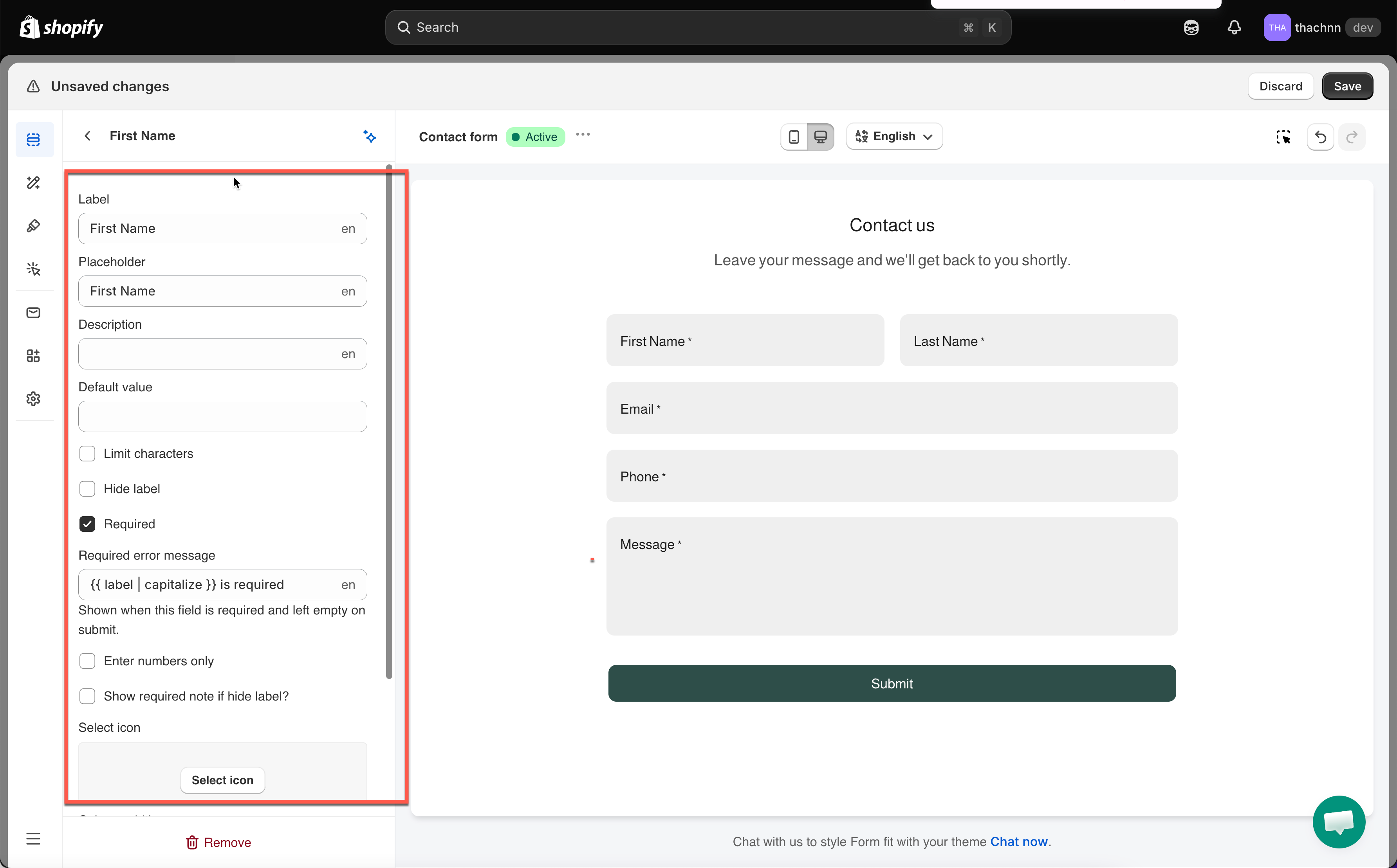
Click any field to open its settings in the left panel. Changes preview live — click Save to publish.
Settings shared by most fields:
Label
Visible name above/beside the field
Placeholder
Gray hint text inside the input
Description
Helper text under the field
Default value
Pre-filled answer the visitor can edit
Limit characters
Turns on Min/Max character limits
Hide label
Removes the label from the published form
Required
Visitor must fill it in to submit
Select icon
Adds a built-in icon inside the input
Column width
33% / 50% / 100% — for side-by-side layouts
Conditional display
Show/hide this field based on other answers
Custom HTML class
Adds a CSS class for custom styling


Note: Not every field has every setting — a Divider has almost none; static text fields (Heading, Paragraph) only have text + Column width + Conditional display + Custom HTML class.
🌐 Translating Field Text
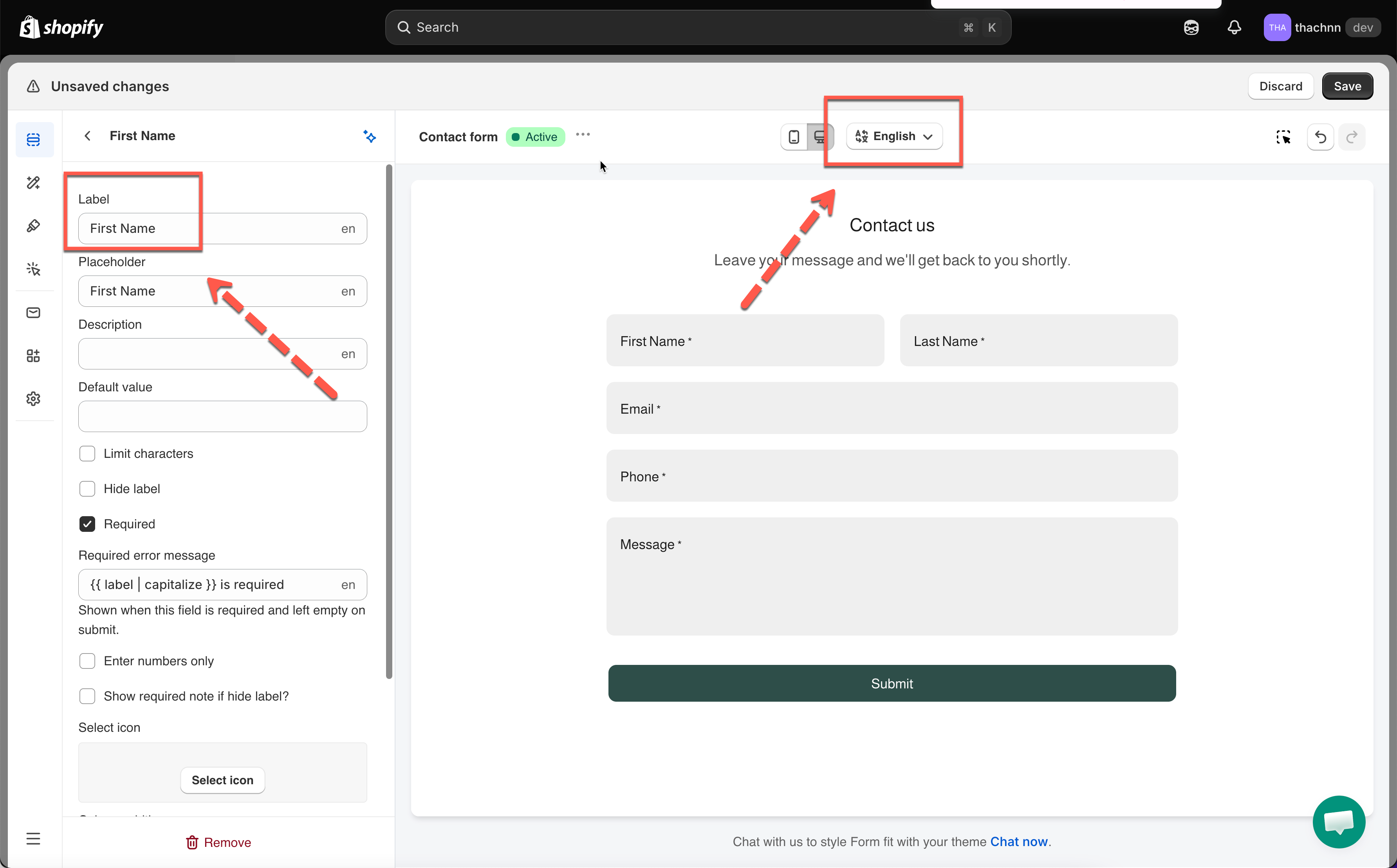
Switch the editor to another language, and every text setting (Label, Placeholder, Description, etc.) shows a language code beside it
Type your translation there
Save form
📌 Note: Editing a second language requires a plan that supports multiple languages.

The app also provides the Auto-translate function. Lean more
📺 Tutorial video
Last updated