> For the complete documentation index, see [llms.txt](https://docs.powerfulform.com/llms.txt). Markdown versions of documentation pages are available by appending `.md` to page URLs; this page is available as [Markdown](https://docs.powerfulform.com/app-integration/hubspot-integration.md).
# Hubspot integration
### 📝 Step 1: Get HubSpot Portal ID (in HubSpot)
1. Log in to your **HubSpot** account
2. Click your **profile picture** (top-right corner)
3. Your **Portal ID** appears in the dropdown
Please follow this [link](https://knowledge.hubspot.com/account/manage-multiple-hubspot-accounts?&_ga=2.213679508.1258595645.1656994320-1460215817.1656259344#check-your-current-account) to know more.
***
### 📝 Step 2: Find or Generate Your Access Token (Private App) (in HubSpot)
Powerful Form uses a **Private App Access Token** to securely send data to HubSpot.
#### ✅ Create a HubSpot Private App + get the token
* In your HubSpot account, navigate to **Settings** > **Integrations** > **Private Apps**.
* Click **Create a private app** > enter a name (e.g., "Powerful Form Integration") and description.
* Under **Scopes**, ensure the following are selected:
* `forms`
* `crm.objects.contacts.write`
* `crm.schemas.contacts.write`
* Click **Create app** > copy the generated **Access Token**.
Please follow this [link](https://developers.hubspot.com/docs/api/private-apps#create-a-private-app) to know more
***
### 📝 Step 3: Add HubSpot Portal ID + Access Token to PowerfulForm (in PowerfulForm)
1. Open the app > **Settings** > **Third party integration** > hover**Hubspot** > click **Config**
2\. Enter **Hubspot Portal Id** and**Hubspot Private App Access Token >** paste the ID you find in step 1 and 2
3\. Click **Save** to update the changes
***
### 📝 Step 4: Map form fields to HubSpot (in Form Builder)
This step controls **what gets sent** to HubSpot when someone submits the form.
#### **Before map the data**
please make sure you already create a form in Hubspot to collect customers information. Learn more about [creating a form in Hubspot](https://knowledge.hubspot.com/forms/create-forms#create-a-form)
#### **Mapping steps**
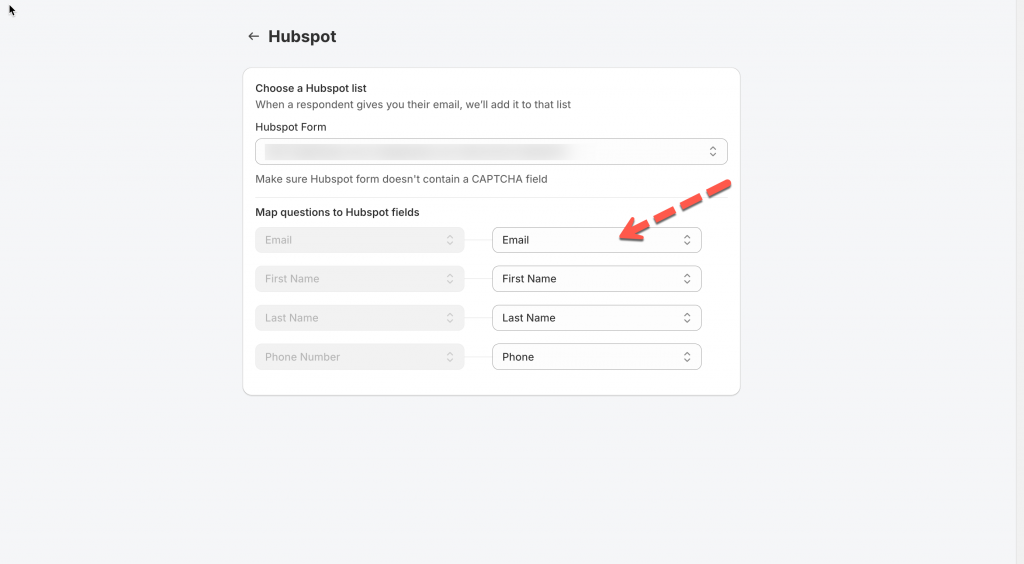
1\. Open the app .> click **Forms** > open the form you want to deal with
2\. Click **Integration** icon on the left side > turn on **Hubspot** > click on **Hubspot** option
3\. Select a form you want from Hubspot
4\. Select the value of the form (on the right) to match with the form field in Hubspot
For example:
HubSpot Email ← Form Email
HubSpot First name ← Form First name
HubSpot Last name ← Form Last name
**Note**:
* The **Email** value is compulsory here to create a new profile in Hubspot
* The other values are optional. Please map them based on your needs
5. Click **Save**
***
### ✅ Test & Check Your Results (in HubSpot)
1. Submit your form once using a real email address
2. In HubSpot, go to **Contacts**
3. Confirm the new contact appears (and fields are filled correctly)
For example: the **First name** field of Hubspot is matched with **First name** field of the form, the **Last name** field of Hubspot is matched with **Last name** field of the form
***
### 🔧Troubleshooting
#### “Invalid token” / “Authentication failed”
* Make sure you copied the **Private App Access Token** (not a different HubSpot key).
* Remove any extra spaces when pasting.
* Confirm your Private App includes these scopes:\
`forms`, `crm.objects.contacts.write`, `crm.schemas.contacts.write`
#### “Portal ID is wrong” / cannot connect
Re-check the **Portal ID** from the profile dropdown in HubSpot.
#### No contacts created after submission
* Confirm HubSpot integration is enabled on the **correct form**.
* Make sure you clicked **Save** after mapping.
* Submit a **new** test entry (older submissions won’t sync automatically).
***
#### Need More Help?
If you still need assistance, please contact us at . Our team will be happy to help you resolve any issues or guide you further.