> For the complete documentation index, see [llms.txt](https://docs.powerfulform.com/llms.txt). Markdown versions of documentation pages are available by appending `.md` to page URLs; this page is available as [Markdown](https://docs.powerfulform.com/app-integration/form-with-pagefly.md).
# Form with PageFly
This guide shows you how to display a PowerfulForm form on a page built with PageFly by copying your form shortcode and pasting it into a PageFly HTML/Liquid element.
### 📝 Step1 : Get embed code of a form
1\. Open the app > click **Forms** > open a form you want
2\. Click **Publish** button on the right corner
3\. Click **Copy short code**
***
### 📝 Step 2 : Add form to page template in PageFly
1\. Open the app > Select a page that you want to insert this form into
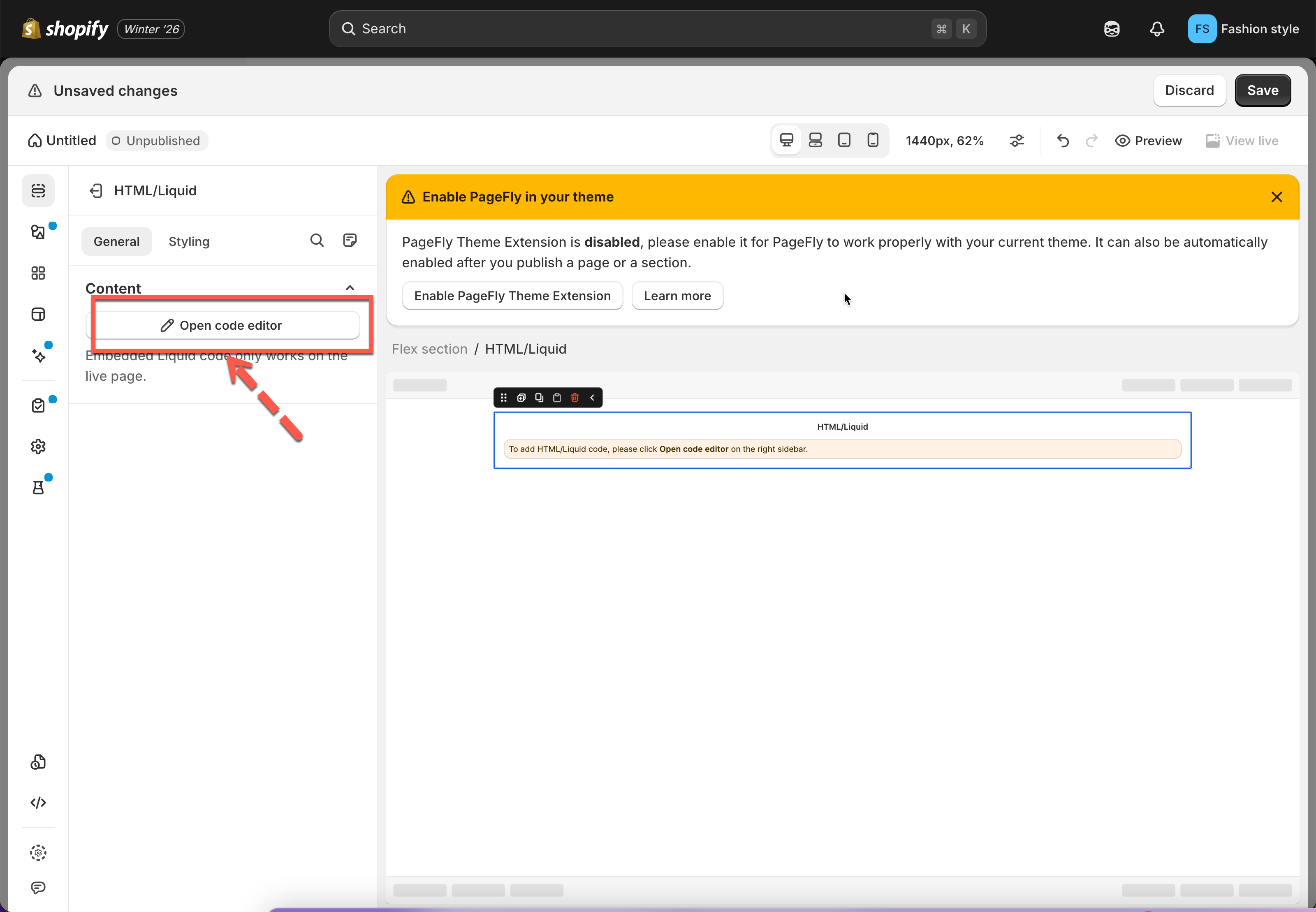
2\. Click **Add new element** button > Select **HTML/Liquid** option > Drag and drop to place the element to the position you want
3\. On the right side, click **Open Code Editor** button
4\. Insert the form shortcode to this **HTML/Liquid Code Editor** box
5\. Click **Save** to update the changes.
**Note**: the HMTL content will not show up right now. It only shows the result on the front store.
Preview the page to check the result on the front store
***
#### Need More Help?
If you still need assistance, please contact us at . Our team will be happy to help you resolve any issues or guide you further.